
It runs the Grok Bot app headless in the background, and I manage it from my desktop.
Why a headless second computer?
Three reasons for me:
- A GPU for local open-weight models.
- Disk and CPU for repo clones, model weights and test runs.
- Another place to route traffic. Routing can go through your own machines, which helps when sites block cloud IPs.
Local models are slower and weaker, so frontier cloud models still do the hard work. The Spark is for the routine load.
The catch
The Spark has no monitor and no browser. So I did the whole setup from my Linux desktop, over SSH. Here are the six steps I followed, from a Linux desktop to an ARM64 DGX Spark. If you're on x64, pick your own architecture in step 1. In the commands below, replace user, <remote>, <path> and <user> with your own values.
Step 1: Install the app on the remote machine
SSH into the remote machine and download the Linux ARM64 AppImage:
https://api2.cursor.sh/updates/api/download/stable/linux-arm64/sand
If libfuse2 is missing, extract the AppImage instead of running it directly:
./Grok_Bot_*.AppImage --appimage-extractRun mkdir -p ~/Apps first, then move squashfs-root to ~/Apps/grok-bot.
Step 2: Open the remote app window on your desktop
From your main desktop, run:
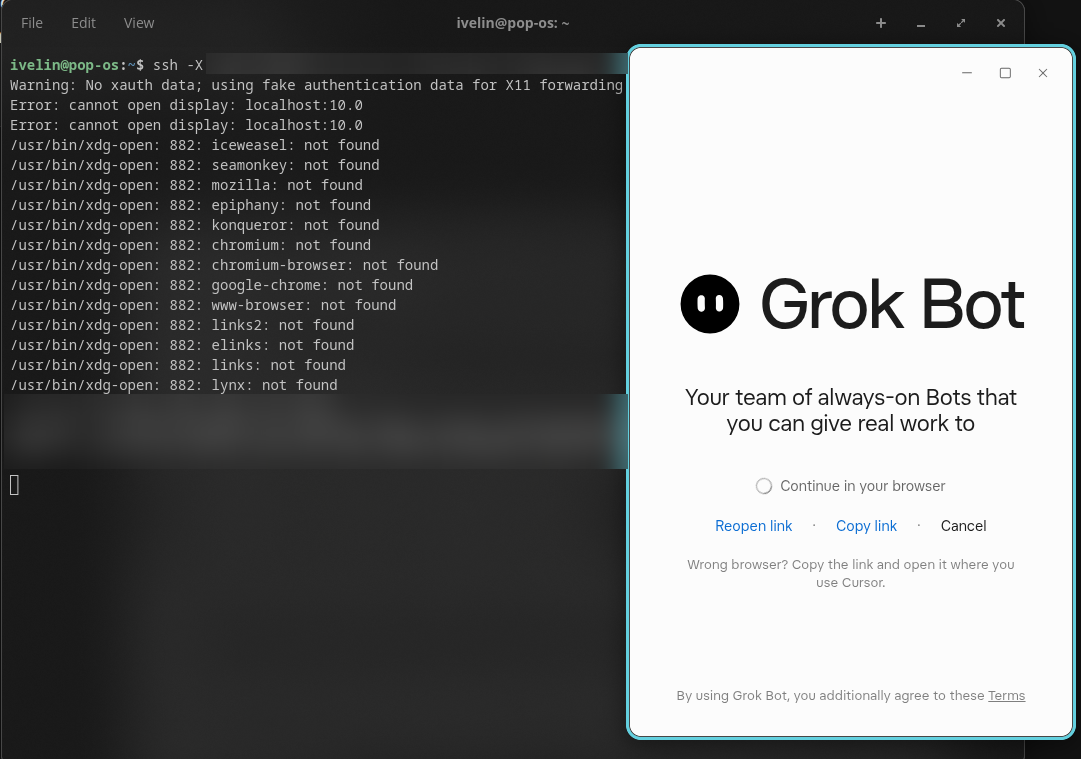
ssh -X user@<remote> /home/user/Apps/grok-bot/AppRun --no-sandboxUse the full path, not ~/Apps/..., because ~ expands on your local machine, not the remote one. The app window opens on your desktop, even though the app runs on the remote machine.
Step 3: Sign in with your local browser
The remote machine has no browser, so sign in from your desktop instead. In the app window, click Copy link (or copy the link from the terminal). Open it in your local browser and sign in. The remote app then finishes signing in.
Step 4: Choose the computer settings
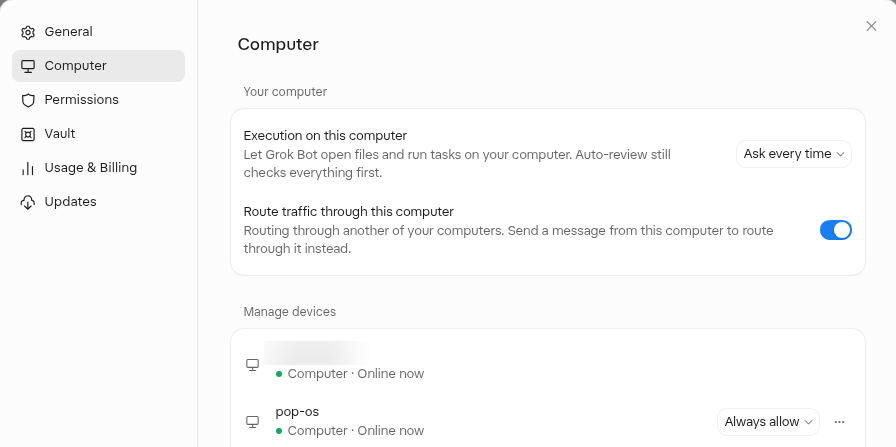
In the remote window, go to Settings > Computer. Choose Execution (Ask every time or Always allow) and Route traffic. Then close the window.
Step 5: Run the app headless as a systemd user service
Closing the window isn't the end. To keep the app running without a display, run it under xvfb-run as a systemd user service. The key lines in the unit:
ExecStart=/usr/bin/xvfb-run -a -s "-screen 0 1280x800x24" <path>/AppRun --no-sandbox
Restart=on-failure
WantedBy=default.target
Here <path> is where you put AppRun, for example /home/user/Apps/grok-bot from step 1.
Then enable and start it:
systemctl --user enable --now grok-bot-appThen enable lingering for your user (this needs sudo once):
loginctl enable-linger <user>Step 6: Check that it's online
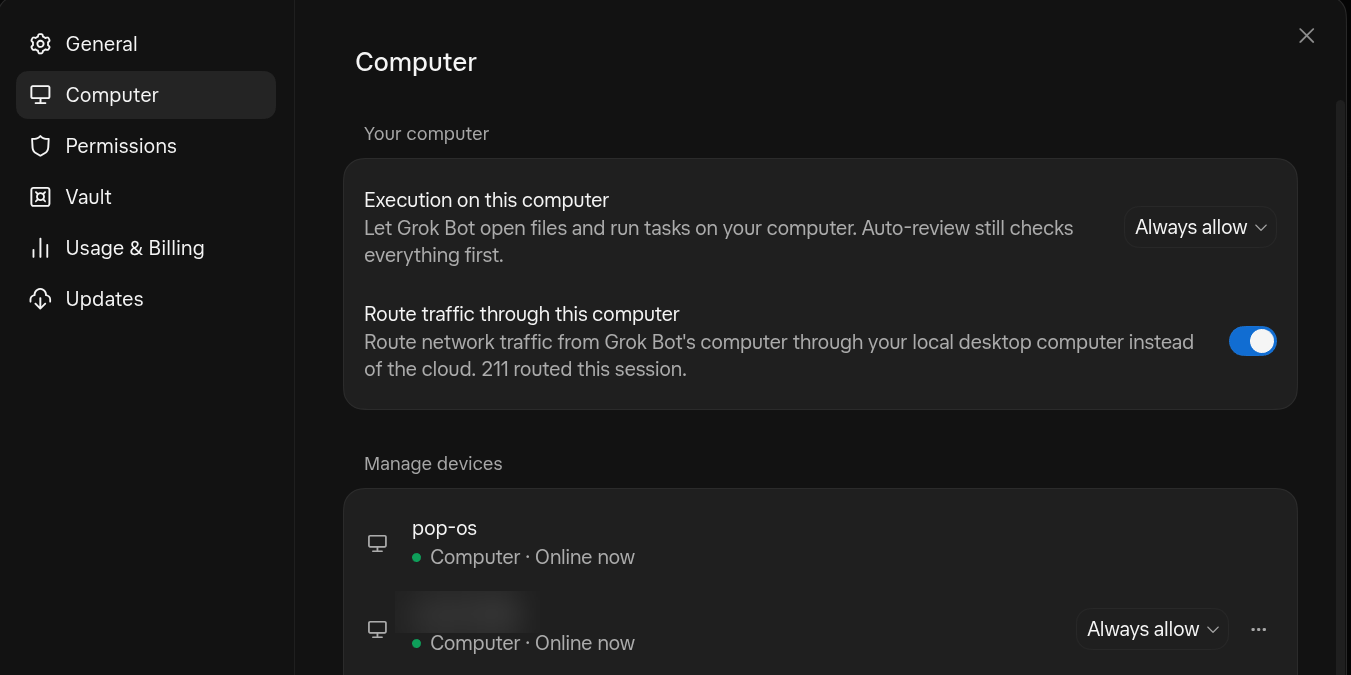
Back on your desktop, open Settings > Computer > Manage devices. The remote machine should show Online.
Caveats
I want to be clear about what I haven't proven yet:
- Start at boot is set, but I haven't reboot-tested it yet.
- The extracted AppImage doesn't update itself.
- ssh -X needs X11 forwarding enabled on the server and an X or XWayland session on your desktop.
Close
That's the whole setup: one SSH session to install, one forwarded window to sign in and choose settings, and a user service to keep it running headless. Next for my Spark is a local Qwen3.8-27B lane for coding and judge runs. If you try this on your own box, tell me what broke.
Give this to your Grok Bot
- Install over SSH on the remote: download the Linux ARM64 AppImage (on x64, pick your architecture). If libfuse2 is missing, extract the AppImage, run mkdir -p ~/Apps first, then move squashfs-root to ~/Apps/grok-bot.
- From your desktop, forward the app window with ssh -X and the full path to AppRun (not ~), because ~ expands locally.
- Sign in with your local browser: Copy link (or copy from the terminal), open locally, and let the remote app finish signing in.
- In the remote window, open Settings > Computer, choose Execution and Route traffic, then close the window.
- Run headless under xvfb-run as a systemd user service (ExecStart, Restart=on-failure, WantedBy=default.target), then systemctl --user enable --now grok-bot-app and loginctl enable-linger for your user (sudo once).
- Check Settings > Computer > Manage devices on your desktop; the remote machine should show Online.